
In any business, a smooth sales process and stable cash flow are important for daily operations. Many companies collect advance payments from customers before delivering products or starting services. This helps confirm the customer’s commitment, reduce financial risk, and provide early cash support for managing operational costs.
In Odoo 19, the Down Payment feature provides a simple and organized way to manage advance payments within the sales workflow. It is especially useful for businesses that deal with large orders, customized products, long delivery timelines, or project-based services where work often starts before the full payment is received.
The Down Payment feature is connected with both Sales and Accounting, allowing users to create a down payment invoice directly from a confirmed sales order. This means users do not need to prepare a separate invoice manually, which saves time and reduces the chances of billing mistakes.
Odoo allows businesses to collect down payments in two ways:
- A fixed down payment amount
- A percentage of the total sales order value
Once the down payment invoice is created, Odoo automatically links it with the original sales order. This keeps the complete payment history clear and traceable. Users can easily track how much has already been paid by the customer and how much balance is still pending.
At the final invoicing stage, Odoo automatically deducts the down payment from the total invoice amount. This ensures that the customer is charged correctly and helps avoid duplicate billing. It also keeps the sales and accounting records properly aligned, giving businesses better control over their invoices, payments, and financial reporting.
Overall, the Down Payment feature in Odoo 19 helps businesses manage advance payments more professionally, improve cash flow, reduce payment risks, and maintain a cleaner sales-to-invoice process.
Creating a New Sales Order
To manage down payments in Odoo 19, the first step is to create a Sales Order from the Sales module. Go to the Orders menu and open the Orders submenu, where you can view all existing sales orders in the system.
From this screen, users can review previous orders, open a specific sales order, or create a new one for down payment processing. Once the sales order is created and confirmed, Odoo allows you to generate a down payment invoice directly from the same order.
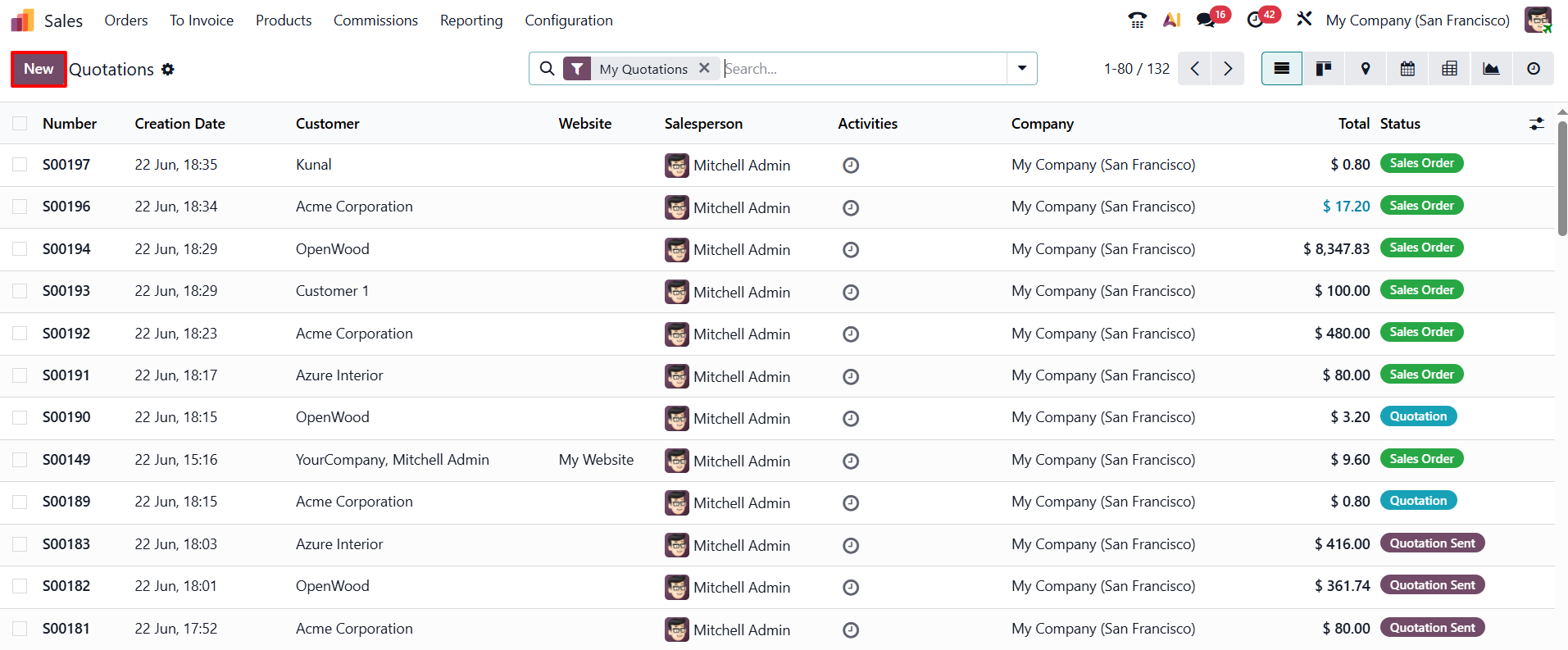
To create a new sales order, click the New button and begin entering the required details in the order form. The key fields to be completed include the Customer, Invoice Address, Delivery Address, Quotation Template, Expiration Date, Quotation Date, Recurring Plan, Pricelist, and Payment Terms.
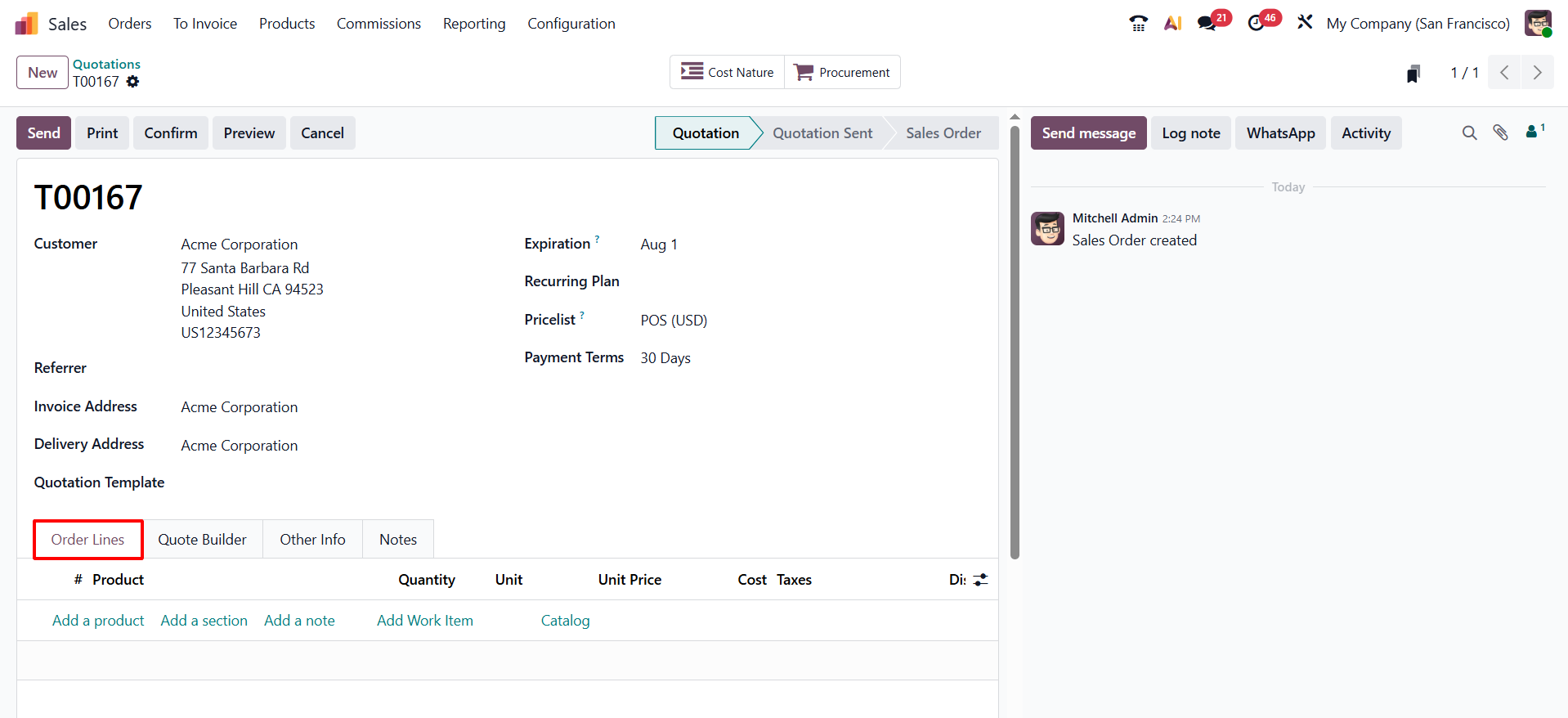
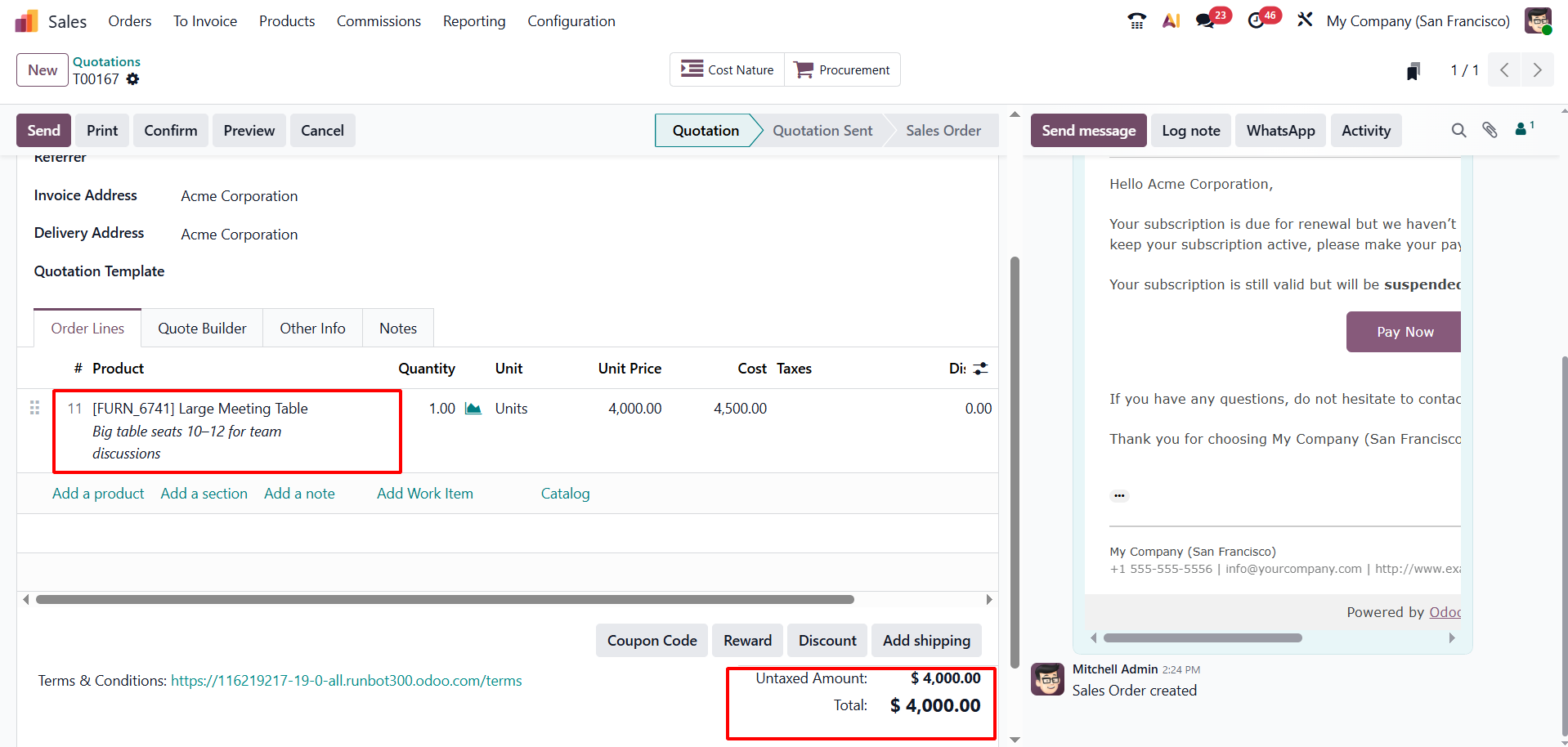
In the Order Lines section, add the required products or services and enter the quantity for each item.
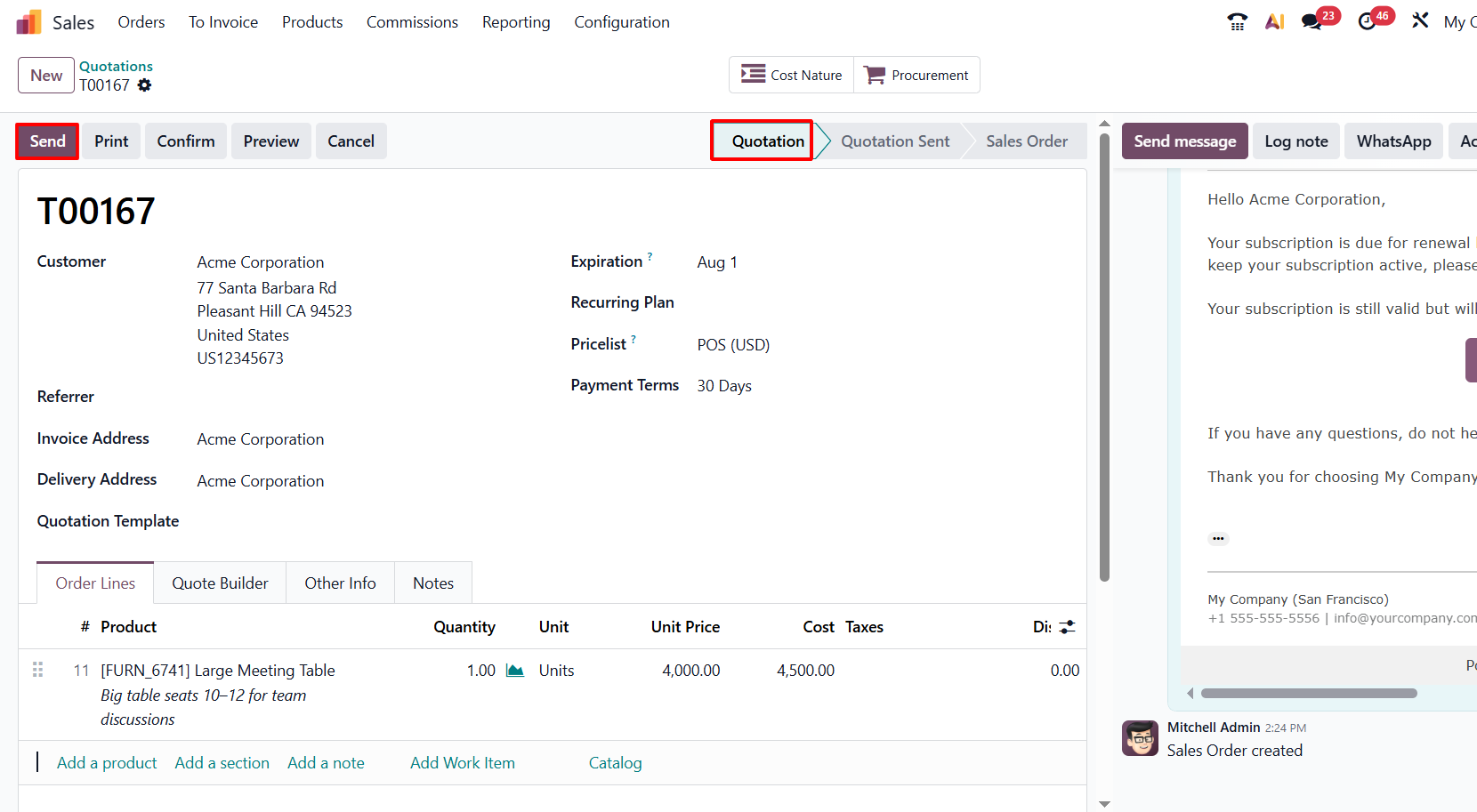
After clicking Send, the quotation is delivered to the customer, and its status changes from Quotation to Quotation Sent.
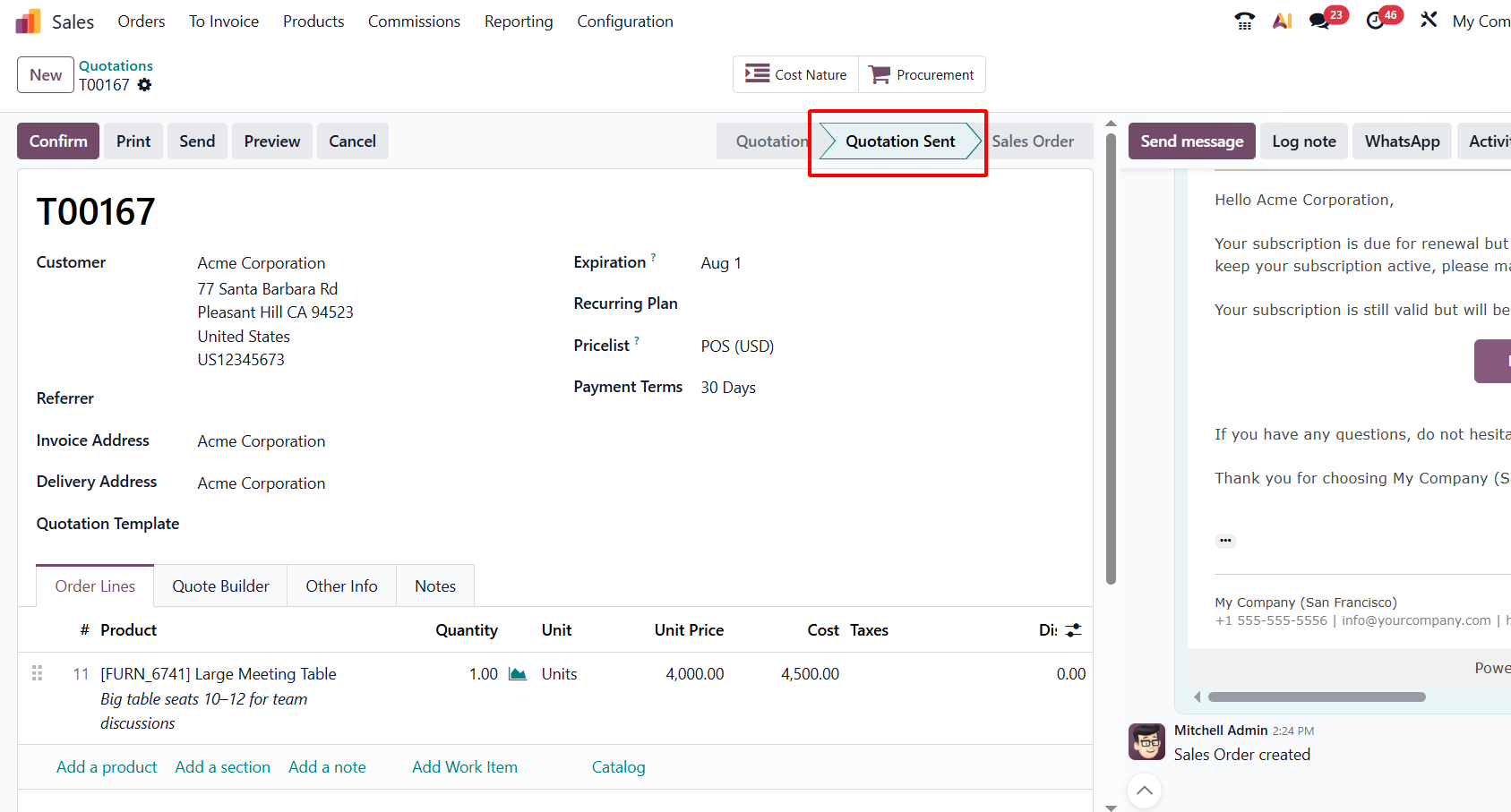
When the customer accepts the quotation and the order is confirmed, Odoo 19 automatically updates the status from Quotation Sent to Sales Order.
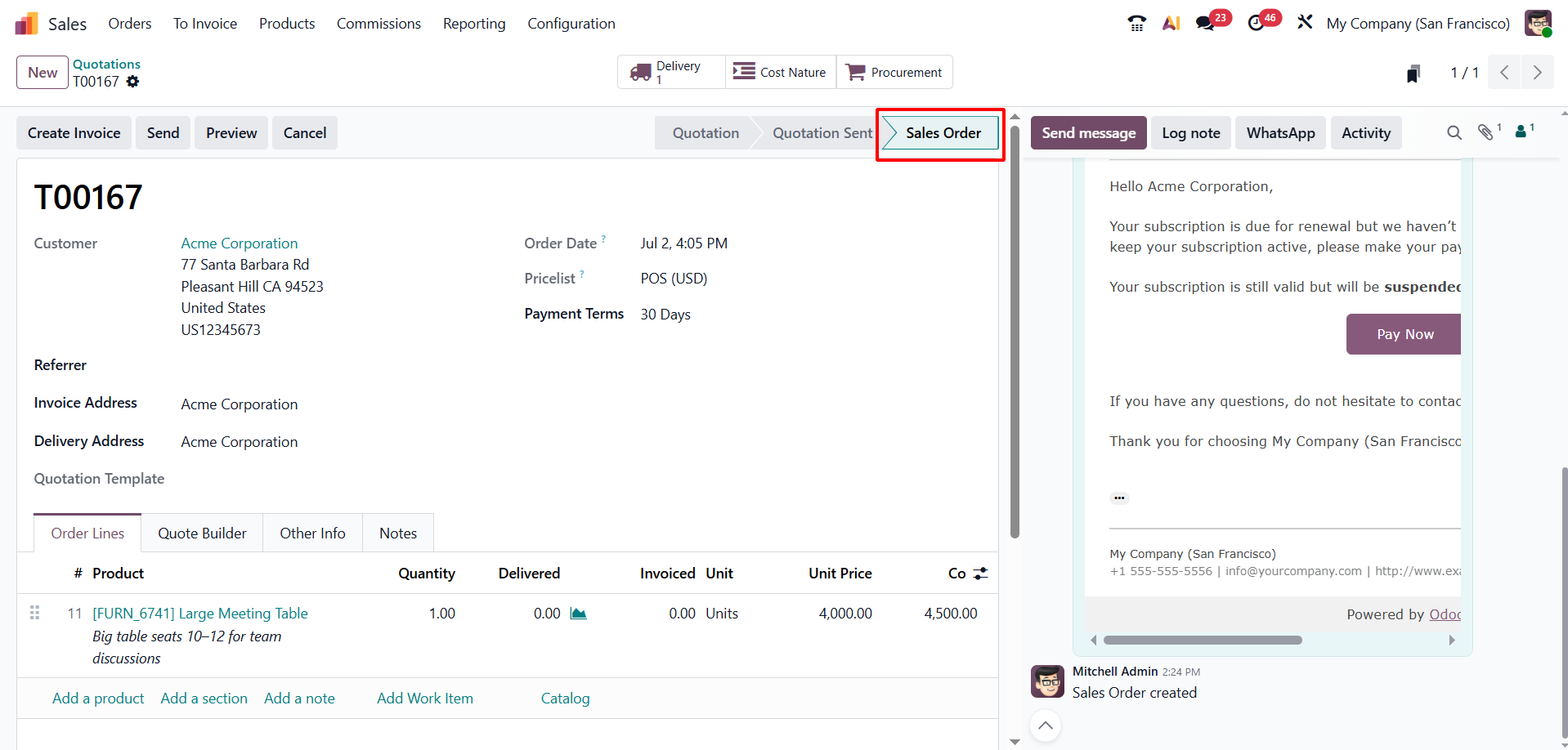 This confirmation shows that the order has been officially approved and is now ready for invoicing or delivery.
Generating Invoices and Managing Down Payments
To proceed with billing, click the Create Invoice button available on the sales order.
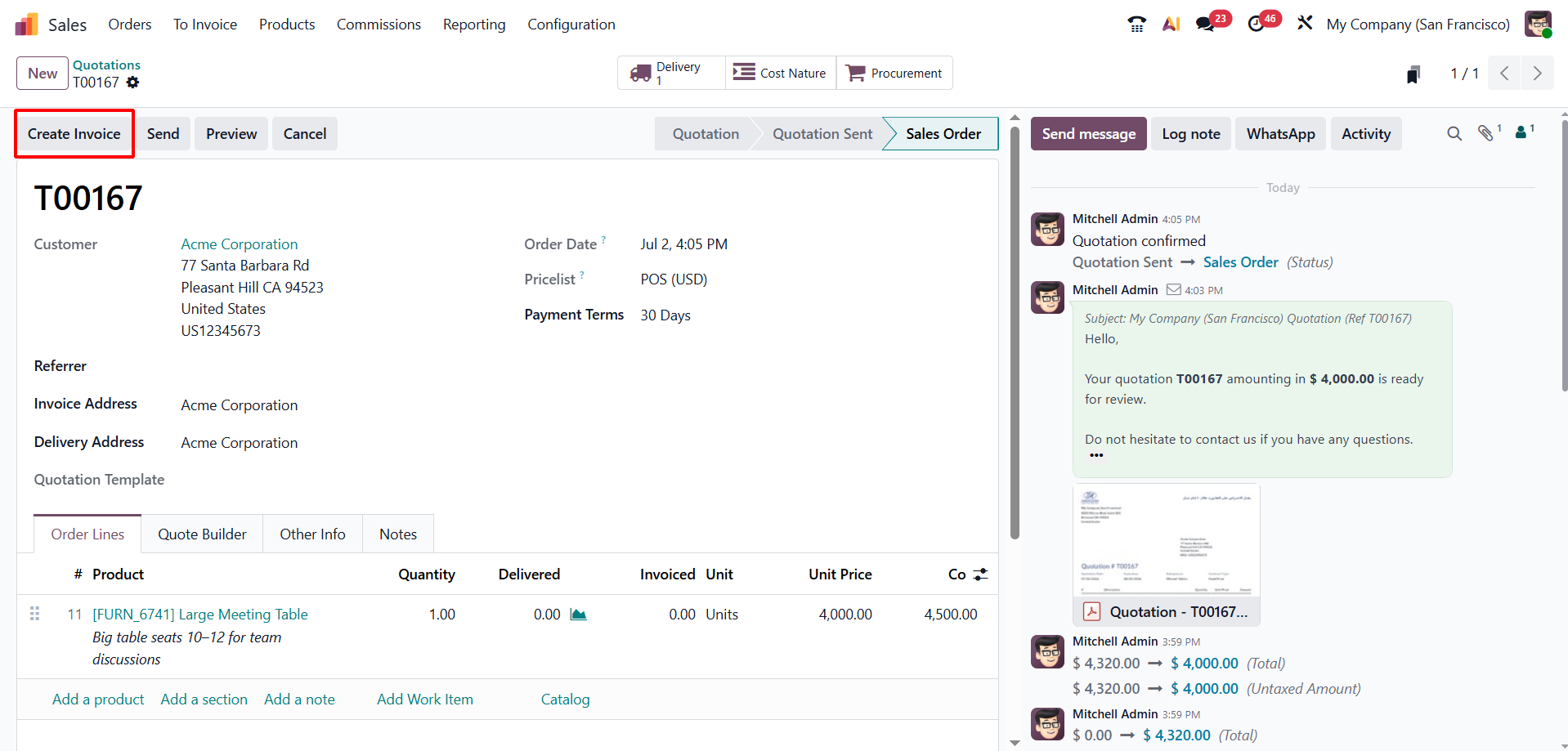
This action opens a pop-up window where you can select the invoicing method, such as creating a regular invoice or generating a down payment invoice. This gives users more flexibility to manage invoices directly within the sales workflow.
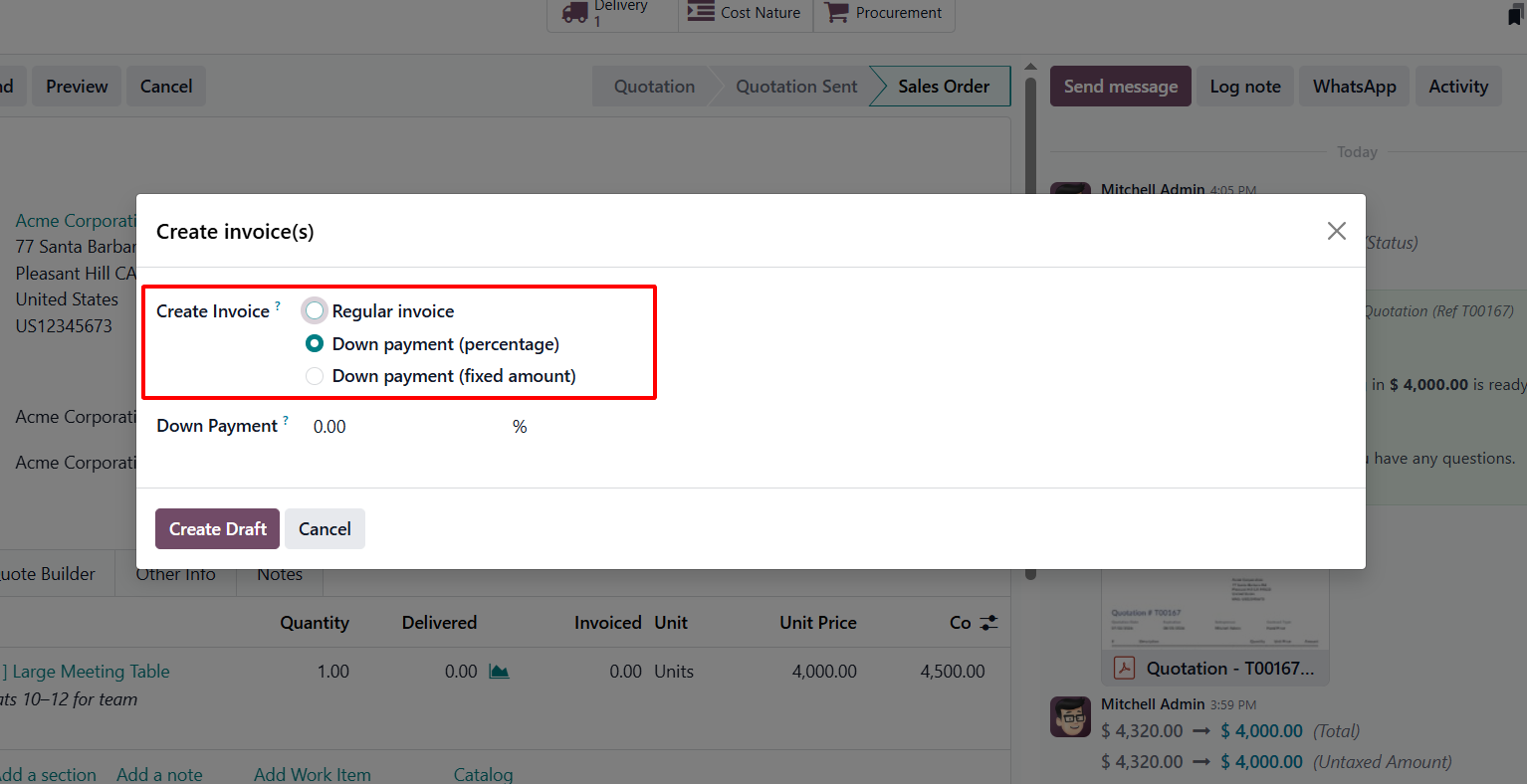
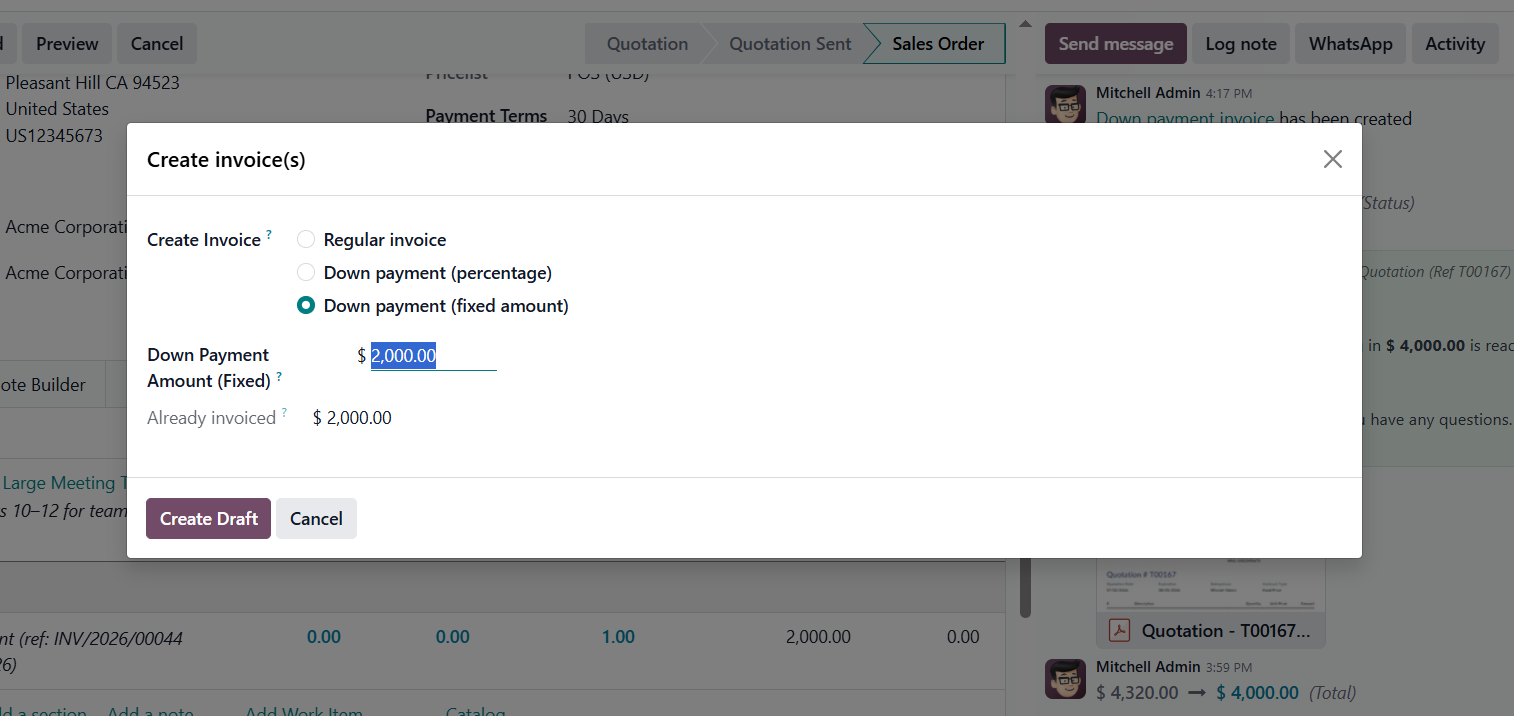
As mentioned above, clicking the Create Invoice button opens a pop-up window with three invoicing options: Regular Invoice, Down Payment (Percentage), and Down Payment (Fixed Amount).
✦ The Regular Invoice option creates a standard invoice for the full order value. This is usually used when the customer pays after the order is confirmed, delivered, or the service is completed.
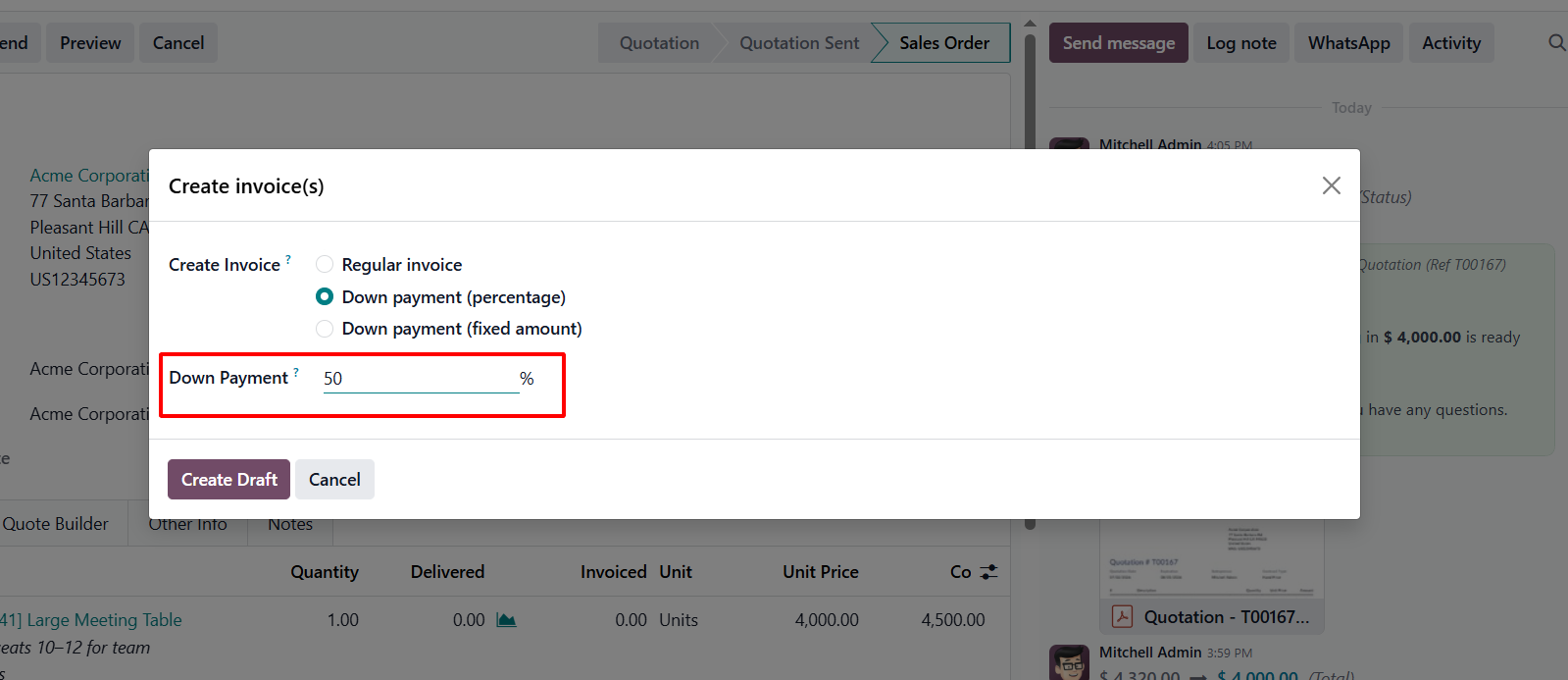
✦ The Down Payment (Percentage) option allows the business to request an advance payment based on a percentage of the total sales order amount. This is useful for high-value orders, customized products, or long-term projects where partial payment is required upfront.
✦ The Down Payment (Fixed Amount) option allows users to request a specific fixed amount as an advance payment, regardless of the total order value. This is helpful when a predefined advance amount has already been agreed with the customer.
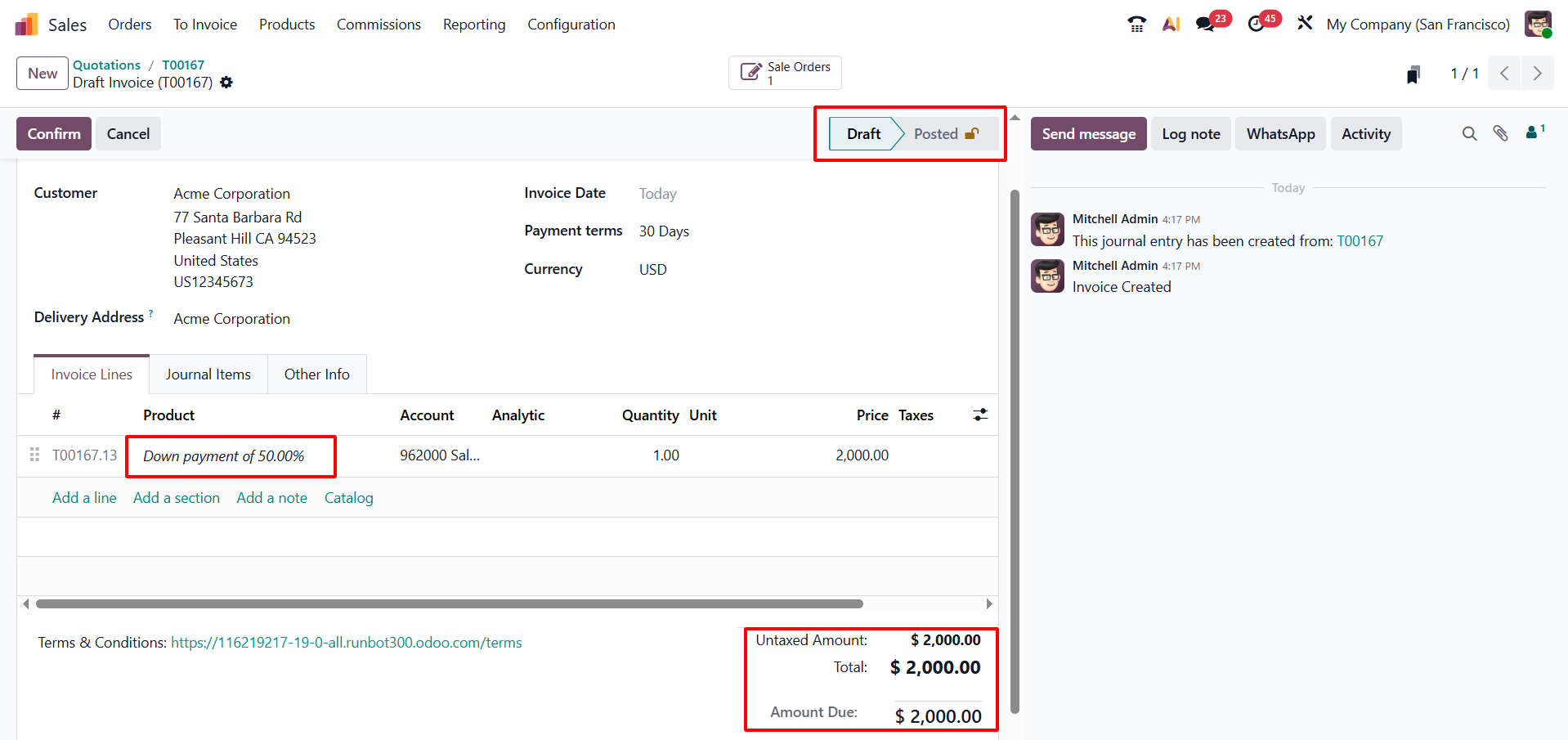
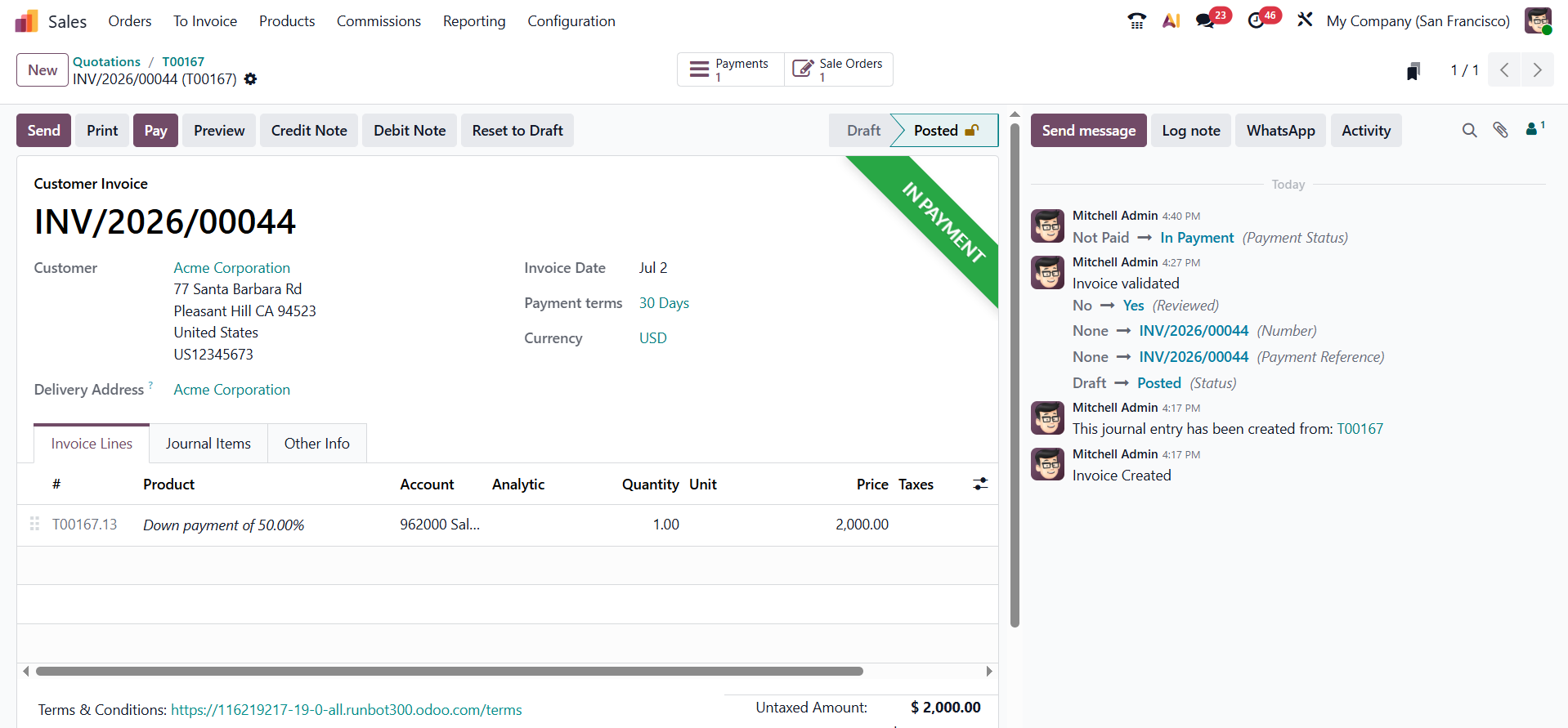
In the Invoice Lines tab, the down payment appears as a separate entry linked to a down payment product, showing the amount, account, taxes, subtotal, and related accounting details.
Odoo 19 calculates the final invoice total by combining the untaxed amount with the applicable taxes, helping ensure accurate and transparent billing. Once the invoice details have been reviewed, click Confirm to post the invoice and move it from Draft to Posted status.
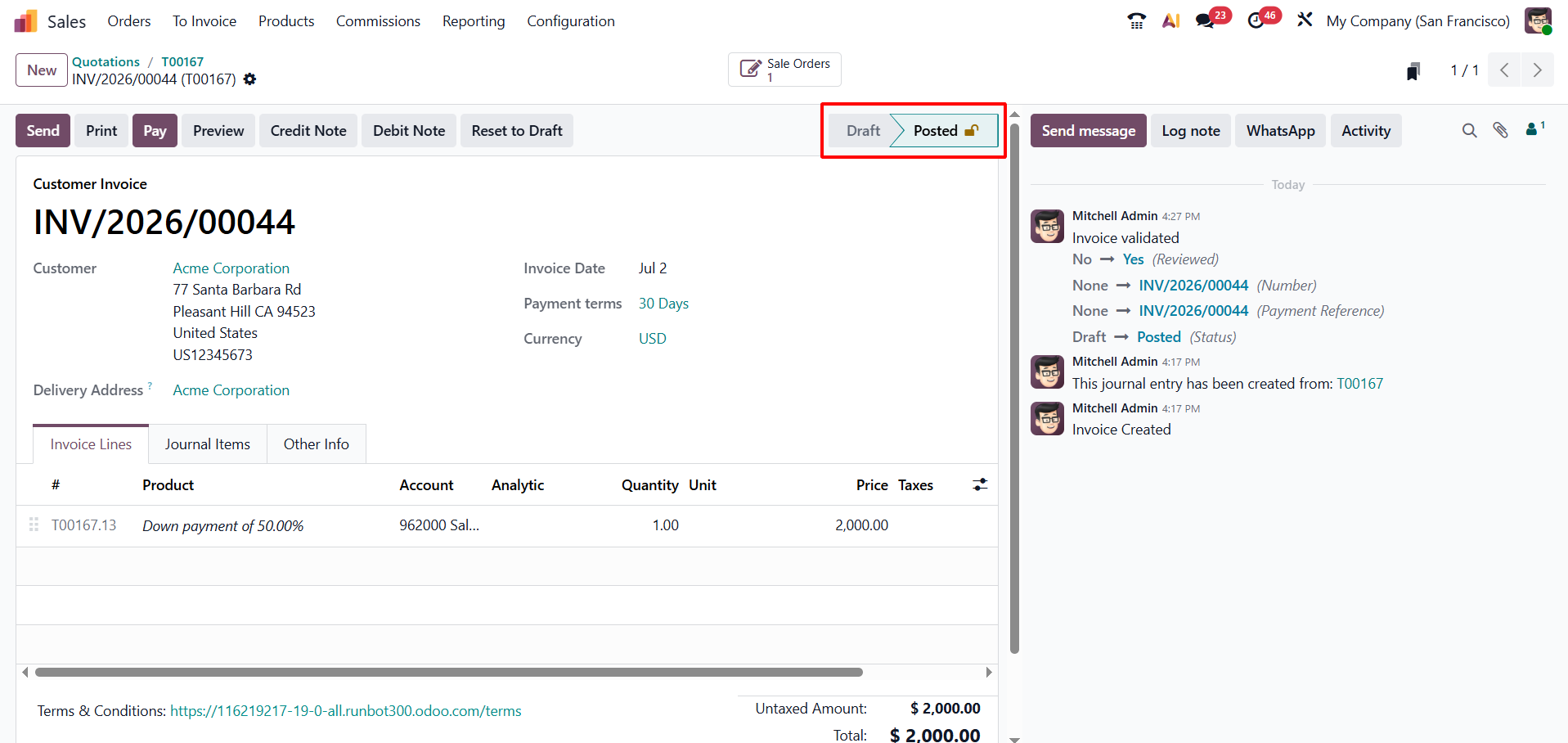
Once the invoice is confirmed, click Pay to record the customer payment. Odoo will open a payment window where you can verify the journal, method, amount, date, bank account, and memo before registering the payment.
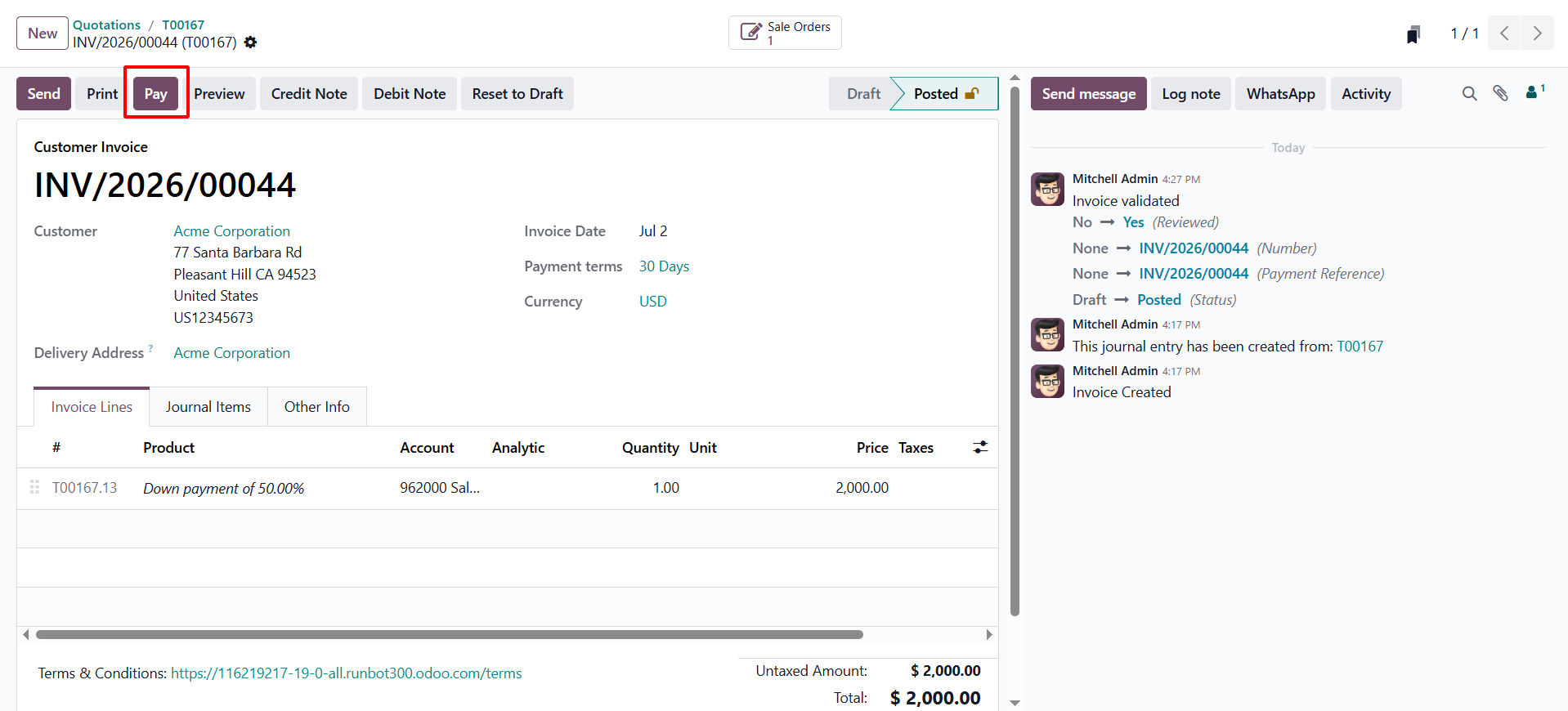
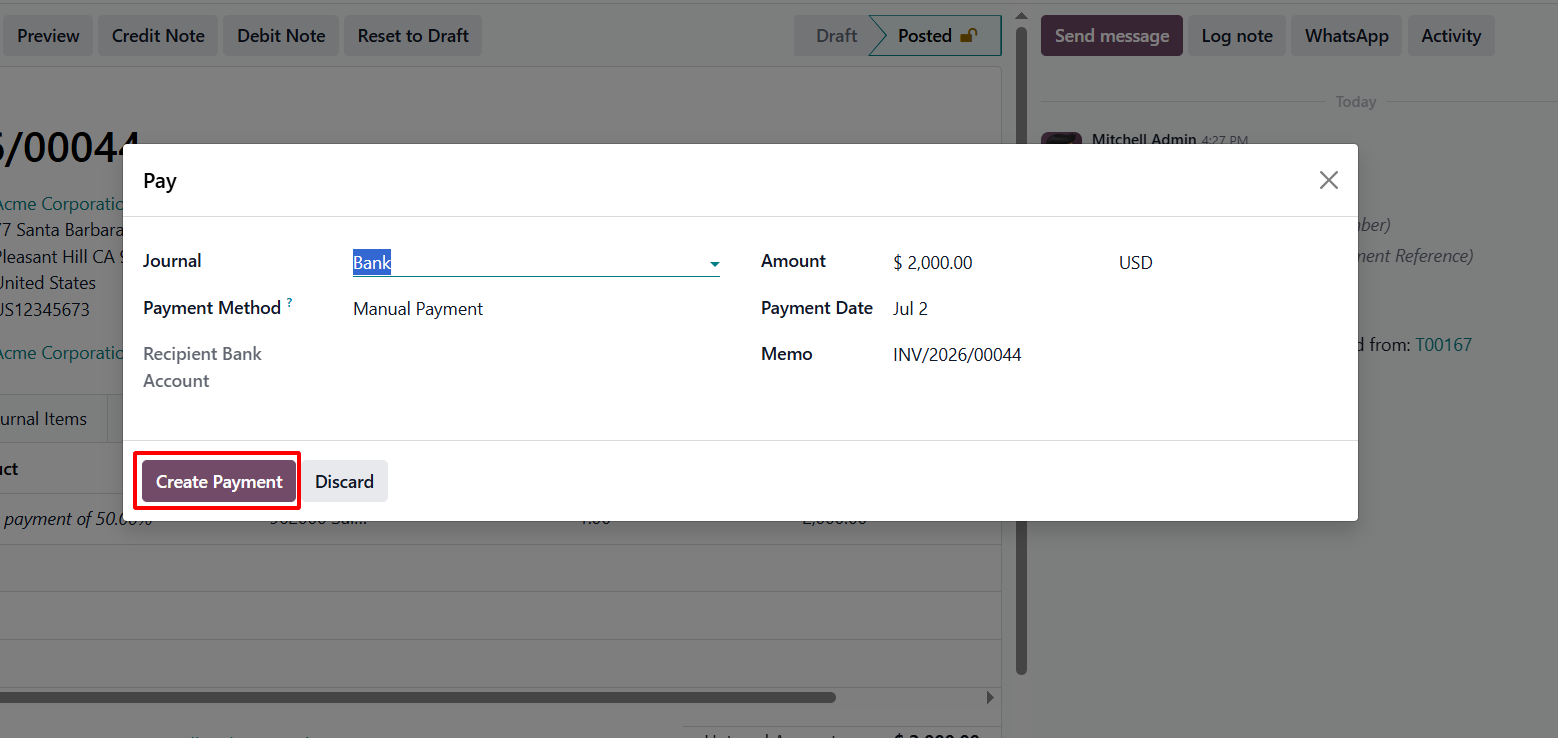
Review and adjust the payment details as needed, then click Create Payment to record the transaction in Odoo.
After successful payment registration, an “In Payment” ribbon appears on the invoice form, indicating that the payment process has been initiated.
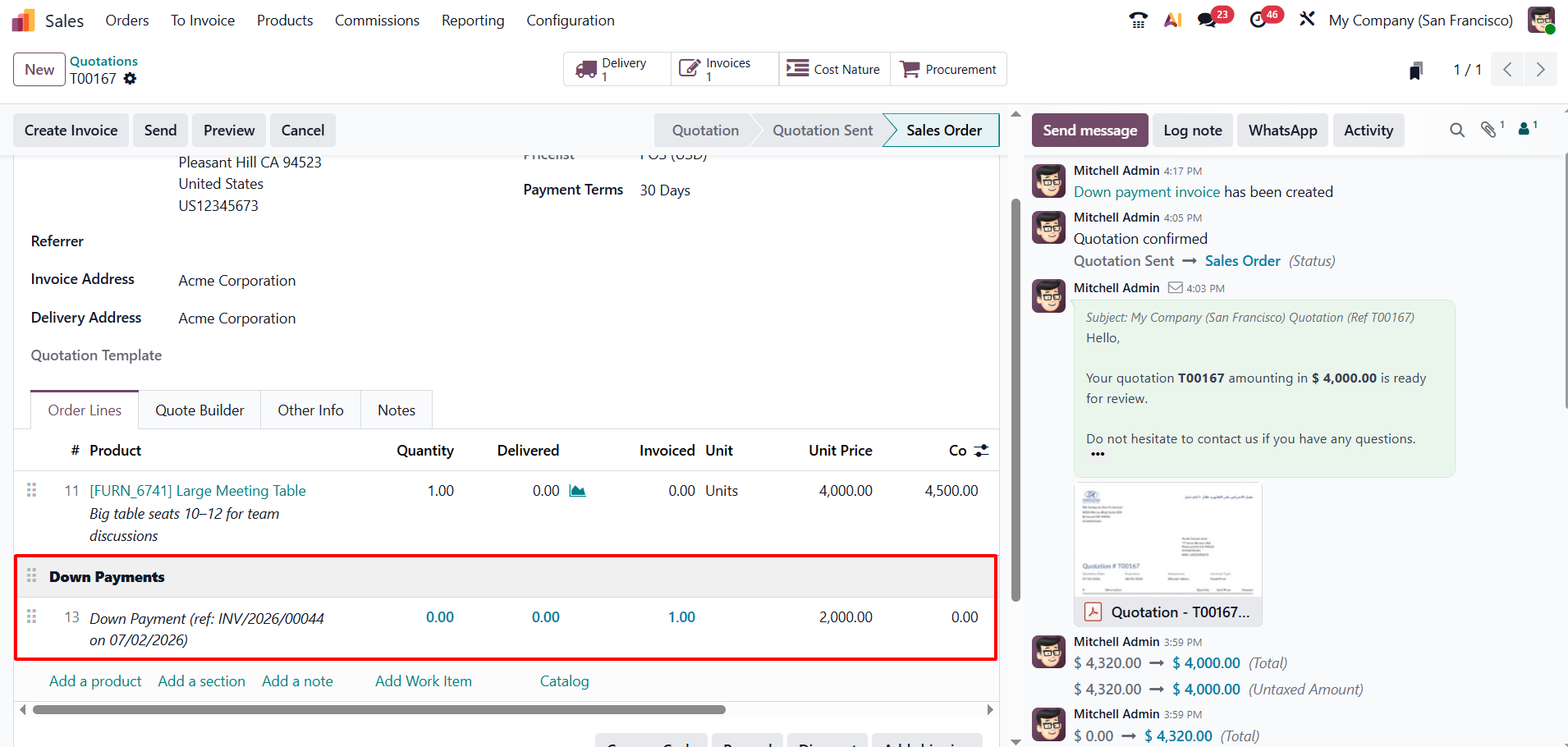
Upon returning to the Sales Order, the applied down payment is displayed in the Down Payments section, allowing users to easily track advance payments received against the order.
When Create Invoice is selected again and a percentage-based invoice is created for the remaining amount, Odoo 19 automatically recognizes the amount already invoiced and subtracts it from the total sales order value. This ensures the customer is charged only for the outstanding balance and prevents duplicate billing.
Additionally, Odoo 19 provides smart buttons on the sales order form for easy navigation and control.
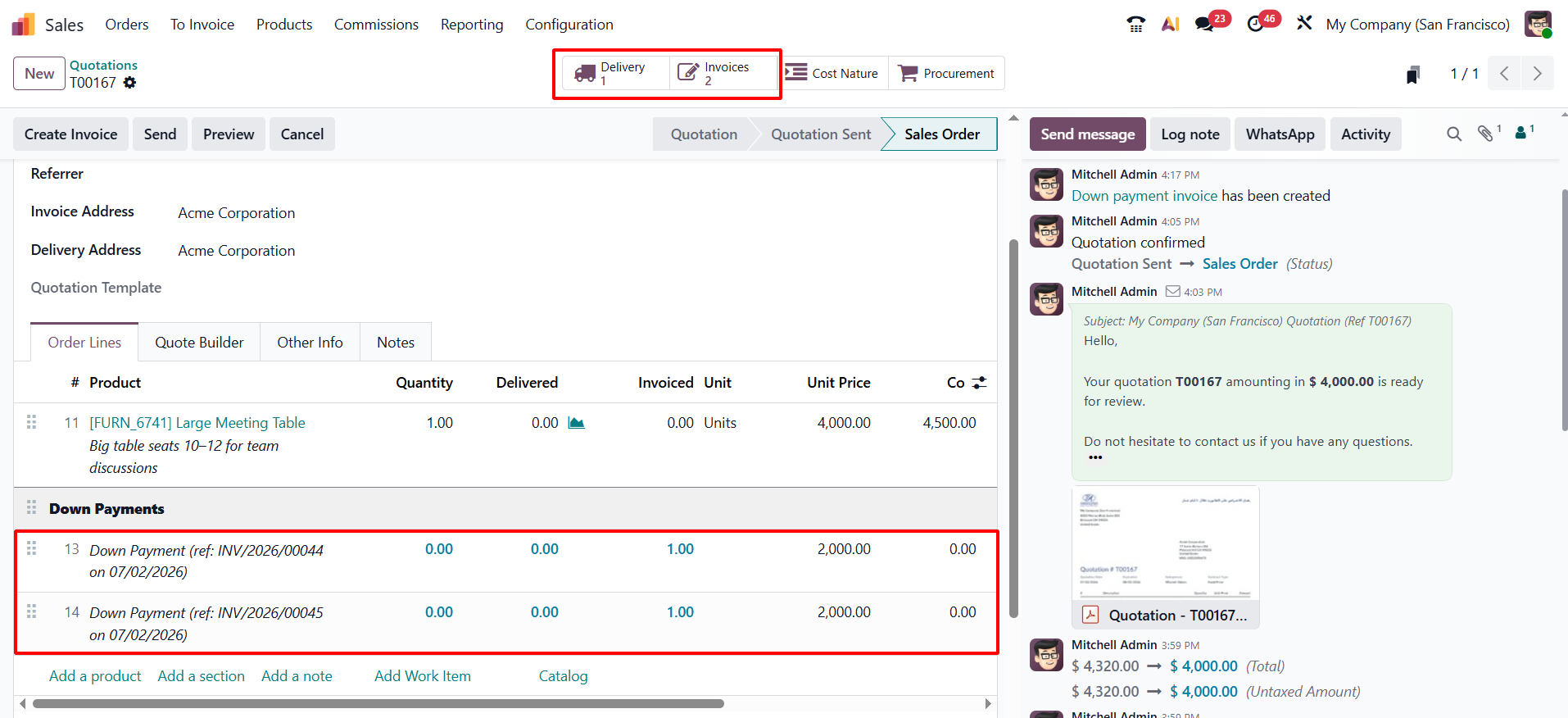
The Invoices smart button allows you to view and manage all invoices related to the order, while the Delivery smart button enables tracking and management of delivery operations.
The Down Payment feature in Odoo 19 helps businesses simplify the sales and invoicing process while maintaining strong financial control. It allows advance payments to be collected either as a fixed amount or as a percentage of the sales order, helping improve cash flow, reduce payment risk, and confirm customer commitment at an early stage.
Odoo 19 also automates the creation and adjustment of down payment invoices, ensuring that previously paid amounts are correctly deducted from the final invoice. This reduces manual work, prevents double billing, and keeps the invoicing process accurate and transparent. With clear payment records and seamless integration between the Sales and Accounting modules, Odoo 19 enables businesses to manage sales transactions with greater efficiency, accuracy, and confidence.